How Does a Mural Wallpaper Crop Preview Work?
Use the preview to review composition, focal subjects, wall proportions and the relationship between the artwork and the entered dimensions.
Article focus: pricing and measurement
The cost and measurement decision
Start with accurate wall measurements; the final custom mural price depends on area, material and any finishing options.
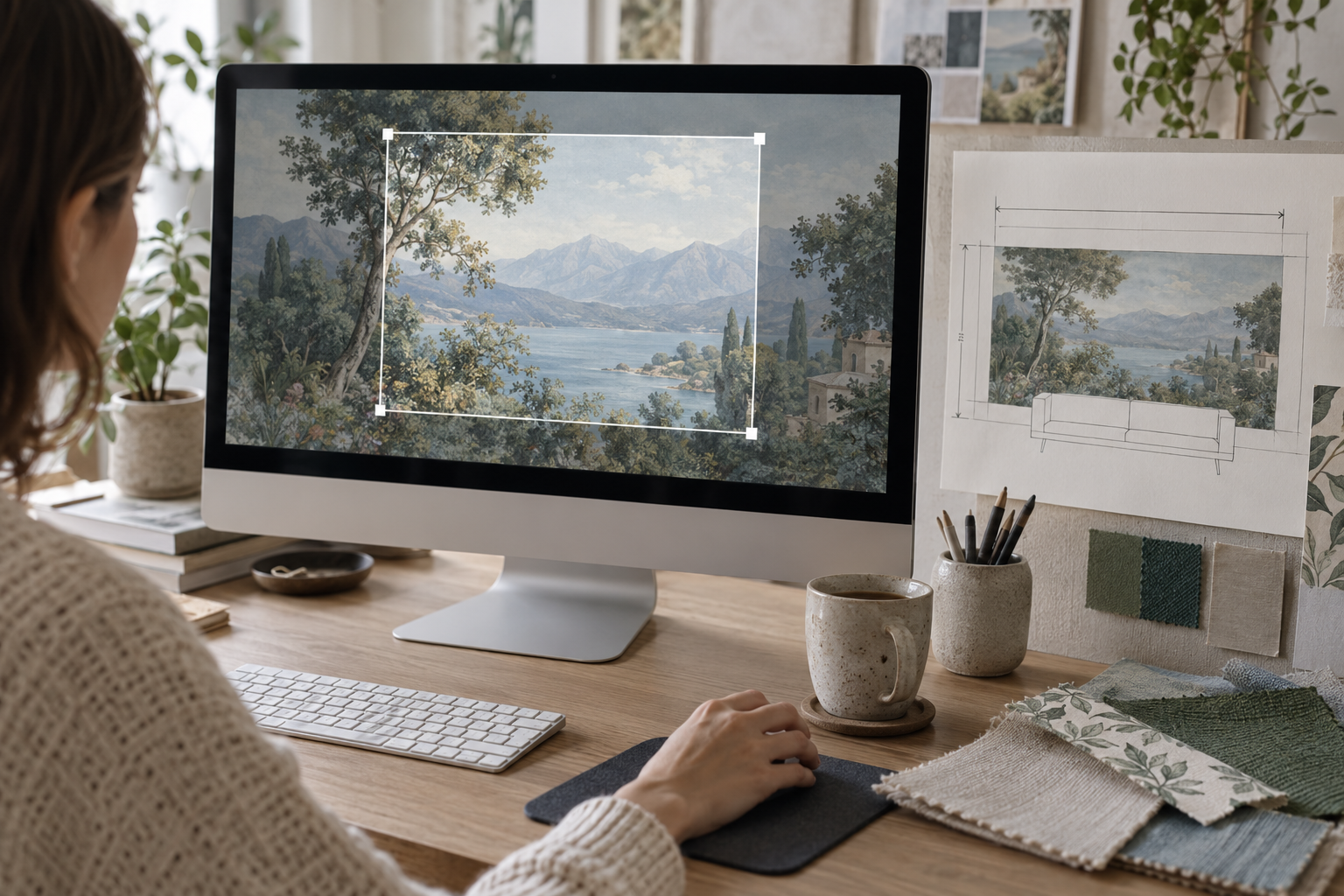
Example application: Any room with a suitable, prepared wall · pricing and measurement
A crop preview is the small planning window between choosing a mural image and committing it to a particular wall. It shows which portion of the artwork will be printed at the dimensions you entered. That sounds simple, yet the frame can change dramatically when a wide photograph is fitted to a tall wall, and it does not show every real-world obstruction. Understanding what the preview includes—and what it cannot prove—makes it much more useful.
Why does the image move inside a frame?
Every source image has an aspect ratio: its width relative to its height. Your wall has another. If those ratios differ, the whole image cannot normally fill the wall without either cropping, distorting or leaving blank space. A crop tool usually preserves the image's proportions and lets you decide which part to keep. Dragging the image changes the view; zooming changes the scale and therefore how much of the scene remains inside the wall-shaped frame.
Picture a panoramic landscape being placed on a narrow wall. To cover that wall from top to bottom, part of the landscape's left and right sides may fall outside the frame. If the artwork is instead kept fully visible, the wall may have empty bands unless the supplier offers a deliberate background treatment. A good preview makes this trade-off visible. Never assume that a product photograph of a wide room shows the exact crop you will receive for your wall.
Imagine a 6000-by-2000-pixel landscape, whose ratio is 3:1, on a 4-by-2-metre wall with a 2:1 ratio. To fill that rectangle without distortion while retaining all 2000 pixels of height, the crop uses 4000 pixels of width. A centred position loses about 1000 pixels at each side; moving the image selects a different 4000-pixel section but cannot bring both ends back into frame. If the order includes extra trim, repeat the check using the actual submitted print dimensions, then mark which details must remain inside the finished wall rather than only inside the surplus edge.
Before approving the preview, mark the parts of the source image that cannot be lost: a person's face, lettering, a building or the end of a distinctive shoreline. Compare those positions with the proposed crop at the actual order dimensions, then check them again inside the smaller area that will remain after installation trim. If the essential details cannot all fit, choose a different source image or ask whether the artwork can be adapted; dragging the image cannot recover content beyond both edges at once.
Zooming in is a different decision. It enlarges subjects and shows less of the source image, which may make a mountain or flower read better from across the room. It also gives the printer fewer original pixels for the same wall area. Zooming out may be limited by the need to fill the frame; forcing all of a wide image into a taller rectangle without a planned border would leave blank space or distort the artwork. Check the tool's limits rather than assuming every composition can be recovered by dragging.
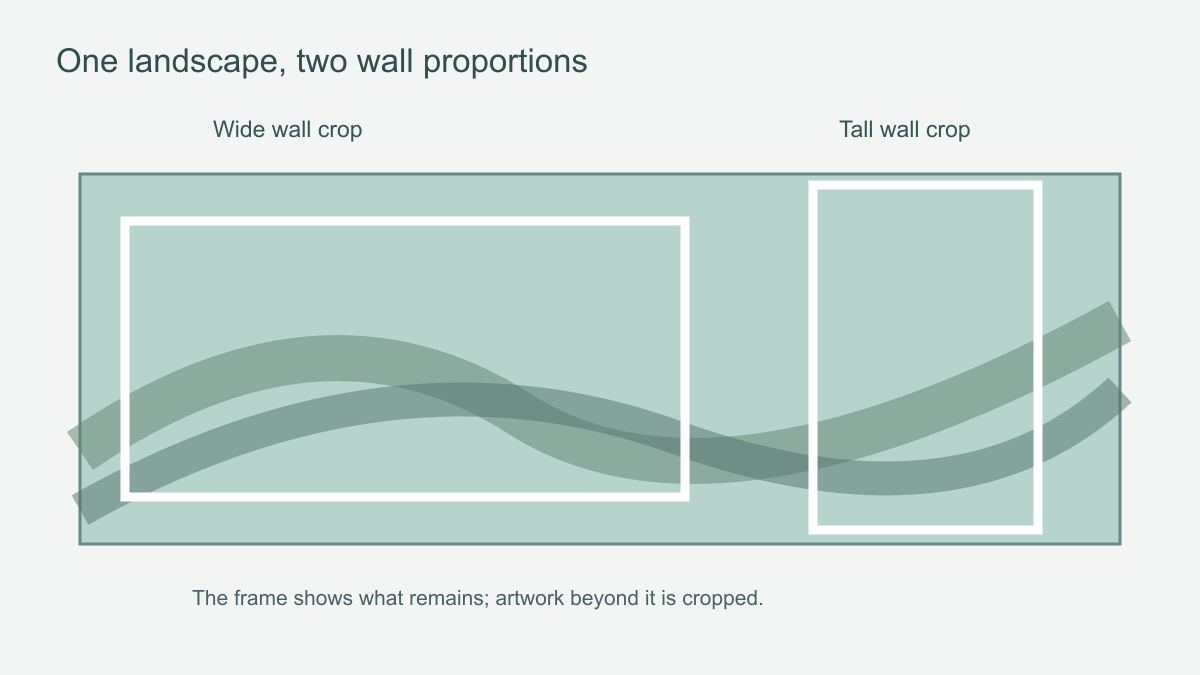 The same source image produces different visible artwork as the wall proportions change.
Enter print dimensions carefully
The crop is calculated from the dimensions you submit, not from the measurements in your notebook. Measure the whole area you intend to cover and follow the supplier's trim instruction. Solowalls currently advises adding about 10 cm (4 in) to both the overall width and height. If you enter the visible wall size but the installer needs extra material for trimming, the preview may represent a different print rectangle from the one you intended to order. Keep the visible dimensions and the ordered dimensions written separately.
Check the unit selector as closely as the numbers. Entering 300 in a centimetre field is not the same as entering 300 in an inch field. If the wall varies in width or height, measure at several positions and seek installation guidance rather than basing a custom print on one convenient point. A slope, staircase, alcove or multiple adjoining walls may need a more detailed plan than a simple rectangular online preview can express.
Do a final dimension check after moving the crop. If width or height changes, the frame's shape may change and the artwork can shift relative to it. A crop chosen for a 300-by-240-cm rectangle should not be assumed to remain identical after trim is added or a second measurement changes the wall width. Draw the finished-wall boundary inside the larger print rectangle: a subject visible only in the outer trimming margin will not survive installation. Save the measured size, ordered size and a screenshot of the resulting composition together so there is one identifiable version to approve.
Place the subject where the room can actually show it
Before moving the artwork, mark doors, windows, radiators and furniture on a quick wall sketch. Decide what the viewer should notice first: a tree, a person, a mountain ridge or perhaps the negative space around a motif. Then place that subject in the visible part of the wall. A face centred on the crop may vanish behind a tall wardrobe; a horizon that seems elegant on screen may run through a window opening.
Look at the full perimeter of the crop, including corners. Check whether flowers are cut at an intentional point, whether a building is truncated at the edge, and whether a large plain area has expanded unexpectedly. For a sofa wall, review both the full-height composition and the part visible above the sofa. The best crop for a product thumbnail may not be the best crop for the room you actually have.
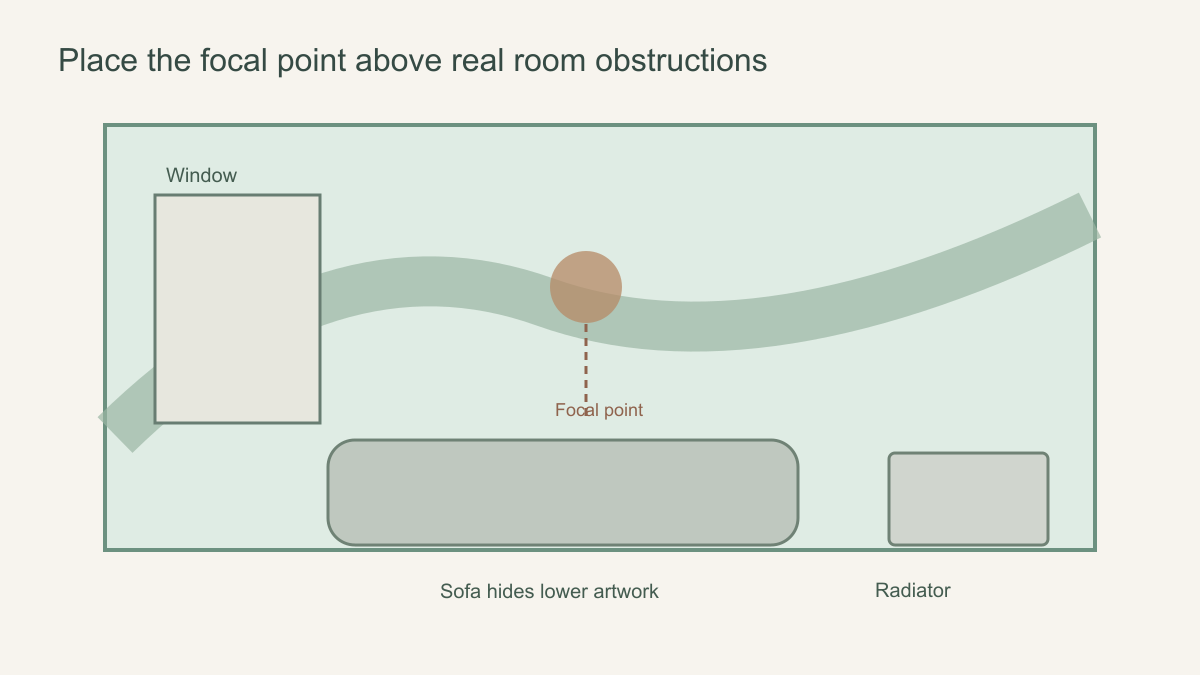 Overlay permanent room features before you approve the visible focal area.
What the Solowalls preview lets you check
For an image you upload yourself, the current Solowalls custom flow describes entering wall size, moving and scaling the image, choosing a finish, then reviewing the crop and estimated price before adding the configuration to the cart. Product mural pages also present a wall-size preview. These screens are useful for checking composition and the selected print rectangle. They are not a promise that every screen colour will match the physical print or that a low-resolution file will become sharp simply because it looks sharp at thumbnail size.
Where a tool offers a panel or strip view, inspect how seams relate to important elements. A repeated pattern may behave differently from a single panoramic image; the preview should be interpreted according to the design you are ordering. Do not assume a seamless repeat unless that specific design is marked and configured to repeat. The Solowalls custom-wallpaper guide describes dimension entry, image positioning and finish selection as distinct stages; the crop is one decision within that sequence, not approval of every material property.
A crop preview may show one continuous image even though the printed mural is delivered in numbered panels. Ask whether the panel boundaries are visible in the tool or whether a layout can be supplied separately. If a face or narrow vertical line may land at a join, discuss it before printing. The preview cannot tell you whether the installer will prepare the wall correctly or align the panels; it can at least reveal where important artwork is planned to fall.
What the preview cannot tell you
It cannot show the exact effect of your room's daylight, monitor settings, printed substrate or painted wall beneath the covering. A physical sample is better for assessing colour and surface. Nor can the preview inspect the wall for loose paint, damp patches or uneven plaster.
It also cannot know the position of furniture or architectural features unless you enter or overlay them. A mock-up room is an example, not a measured survey of yours. If the design has a critical focal point or the wall is unusually shaped, ask for a separate proof or advice before ordering. State the wall dimensions and show a sketch that marks the obstacles, rather than asking whether the mural will “fit” without context.
For a personal photograph, inspect the source file separately at a useful enlargement. The browser may display a sharp-looking reduced preview while the printable crop contains too little detail for the requested wall. A quality warning should be treated as a reason to pause. Re-exporting or changing file format does not restore detail that was never in the original. Ask what source resolution or alternate crop would be appropriate for the chosen print size.
Approve the version you would be happy to hang
Before checkout, verify width, height, units, trim allowance, image orientation, crop position and material. Step away from the screen, then return for one final edge-to-edge look. Save the crop preview or order summary and compare it with the confirmation after payment. If the approved version appears different from what you expected, contact the seller before production progresses.
A useful final test is to name the subject that must survive installation, then locate it twice: inside the ordered print frame and inside the smaller visible wall after trimming and furniture are accounted for. If it survives only in the outer margin, move the crop or choose another image. Keep the saved preview with the exact width, height and units that produced it. A later dimension change creates a new crop decision, even when the source file has not changed.