Can You Create a Mural from a Phone Photo?
Check the original file, image detail, lighting, composition and intended wall size before using a mobile photograph.
Article focus: pricing and measurement
What to settle before pricing
Start with accurate wall measurements; the final custom mural price depends on area, material and any finishing options.
Example application: Bedroom · pricing and measurement
Yes—a phone photograph can become a custom wall mural. What matters is the particular image, not the word “phone” on its camera specification. The original needs enough genuine detail for the intended crop and wall size, and the composition must survive doors, furniture and trimming. A clear coastal photograph captured in good light may be a stronger candidate than a much larger but blurred file; a screenshot of that same scene is a different, weaker source. Keep the original camera file and judge it at the size people will actually see.
Choose a photograph with the wall in mind
A phone image is easiest to adapt when its subject has space around it. If a person, mountain peak or building sits against the very edge of the frame, an installation trim allowance or a change in wall proportions may cut it off. Look for clear foreground and background, a horizon that can sit comfortably above furniture and details that will not be bisected by a door. A dramatic portrait may be a wonderful photograph yet a poor source for a wide wall. You can sometimes choose a narrow feature area instead of forcing it across the full room.
Imagine a seascape photographed with a small boat near the right edge. On a phone, the boat balances the frame. On a wide wall, the crop may need to lose sky or shoreline; with extra installation trim, the boat may fall beyond the visible edge altogether. Make two mock-ups: one showing the complete wall and one showing the part left visible above a sofa or headboard. If the important subject cannot fit both, change the wall area or choose another frame rather than stretching the photograph.
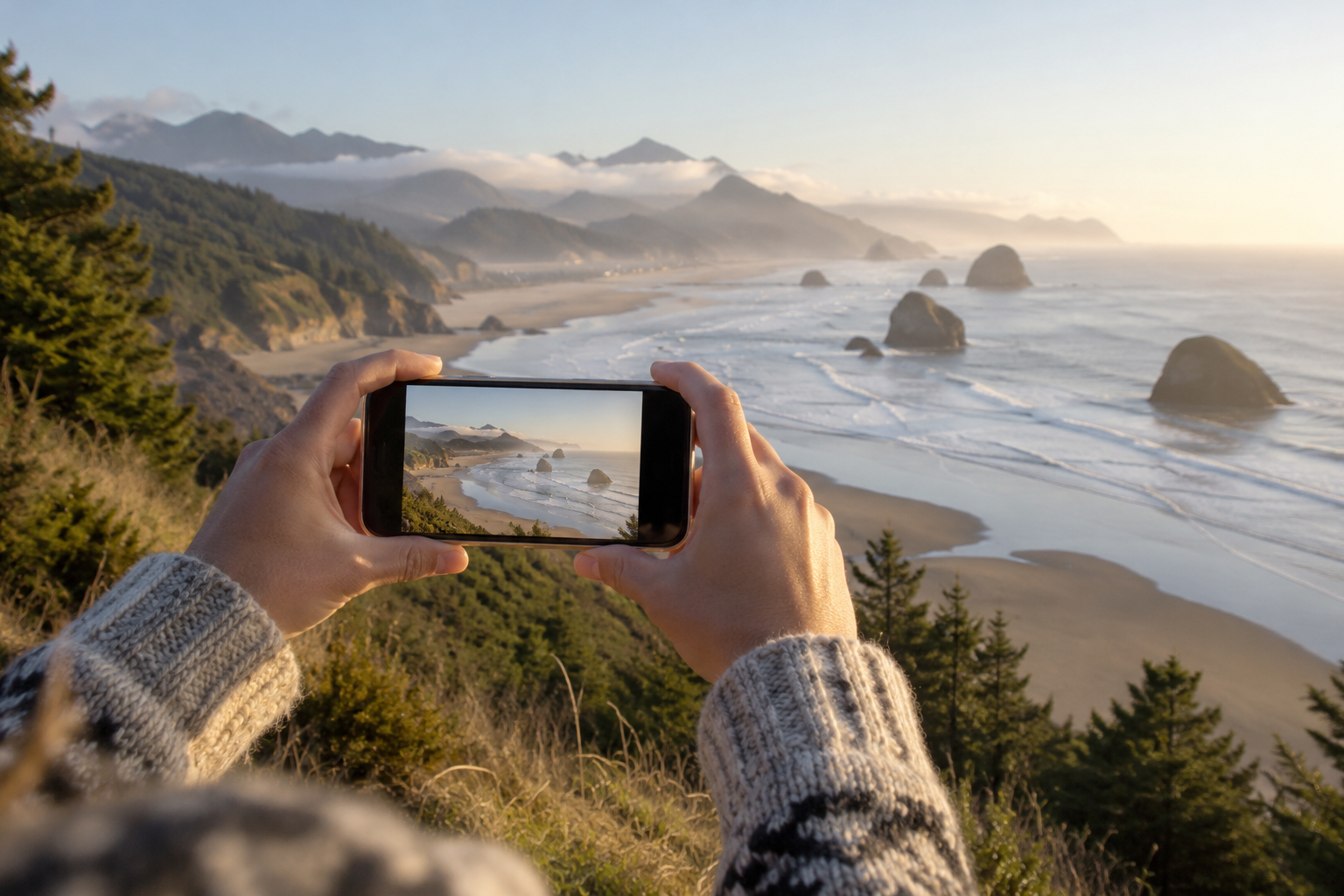
The feature image for this article is an editorial illustration of a coastal view being framed on a phone. It shows the practical idea of allowing room around the main subject. It is not a customer photograph, a print sample or evidence that every phone camera can produce a mural at that size. The real test still happens with the original pixels and the measured wall.
Use the original camera file
Transfer the full-resolution image directly from the phone's photo library or a cloud service set to preserve original quality. A copy downloaded from a messaging conversation, social platform or email preview may have been resized and recompressed. A screenshot adds another generation of loss and may include interface elements. If several versions are available, compare their pixel dimensions and visual detail; the biggest file in megabytes is not automatically the best, but a tiny preview is rarely the right starting point.
Some phones save photographs in HEIC or another format that an upload form may not accept. Keep that original untouched and export a separate copy in an accepted format; compare the exported pixel dimensions with the original before uploading, because a quick-share setting can silently shrink the image. Solowalls’ current custom-wallpaper page lists JPG, PNG and WebP, with the file-size limit shown there. Its upload flow displays image dimensions and allows a wall-size crop preview. Read the live page when ordering, as accepted formats and limits can change.
Export settings deserve a second look. Some photo apps offer “small”, “medium” and “original” sharing options; the first two can quietly shrink the file. If the photo is held in cloud storage, wait for the full original to download before exporting. Send the supplier a copy of the unedited camera file as well as any preferred edited version. That lets them distinguish a desirable colour treatment from an irreversible loss of resolution.
Choose the phone frame that survives the wall crop
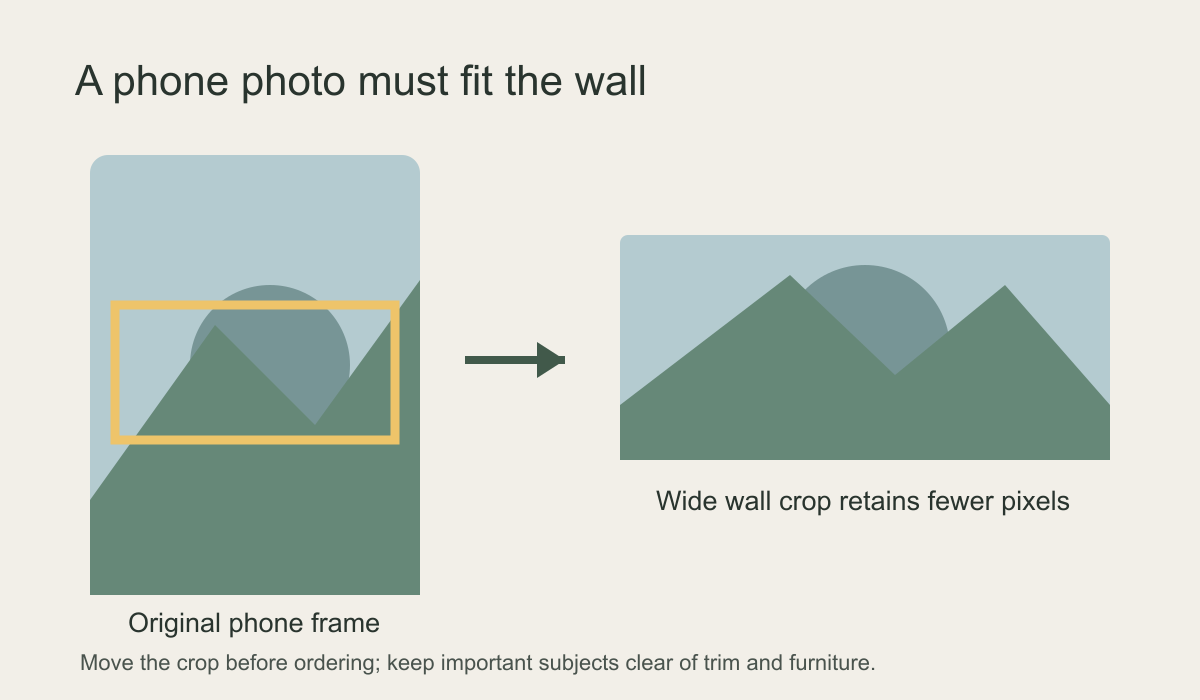
Make a shortlist of the original frames rather than enlarging the first pleasing thumbnail. A portrait photo may contain a strong subject but lose much of its top and bottom when fitted to a wide wall. A landscape frame may leave more usable space, while a panorama can bring its own stitching errors. Put each candidate into the same measured-wall crop and compare what remains visible. The diagram below shows why a tall phone frame can sacrifice so much image when stretched conceptually across a broad wall.
Inspect the retained part of each frame at full pixel view. Phone lenses and processing can leave the centre crisp while branches or faces near the edges become softer. A crop that shifts the subject into one corner may reveal that weakness. If the wall needs extra trim, keep the boat, person or building within the final visible area rather than merely inside material that will be cut away.
Only after choosing the frame should you evaluate the technical enlargement. The separate image-resolution guide shows how to calculate effective pixels per printed inch from the retained crop and wall size; changing a file's dpi label cannot add captured detail. For this phone-photo decision, compare the frames first: a slightly smaller but clean, well-composed original can be preferable to a larger file with blur, processing halos or a subject too close to the edge.
Photographing specifically for a mural
If you have not taken the photo yet, shoot in good, even light and hold the phone steady. Clean the lens first; smears can create low-contrast haze that becomes obvious on a wall. Tap to focus on the important subject, inspect the result at full size and take several frames in case one has motion blur. Avoid digital zoom, which often enlarges a smaller part of the sensor image. If the phone offers a higher-resolution capture mode, test it and make sure the final file actually retains that resolution. More pixels are useful only when they carry genuine detail.
Prefer the phone's standard photo mode for an important wall image unless another mode has been tested at full size. Portrait-mode blur can create an artificial outline around hair, leaves or railings, while night-mode processing may smear foliage or repeat fine textures. A still frame extracted from a video or live-photo sequence may also have fewer usable pixels than a dedicated photograph. None of these modes is automatically disqualified; inspect the actual exported file, particularly where the processing meets a sharp edge.
Leave extra room beyond the desired edges. Installation requires trimming, and walls are not always perfectly square. Step back or use a wider framing rather than placing a face, bird or architectural detail close to the boundary. Make a level horizon if the scene depends on one; rotating the photograph later crops away additional pixels. Take both landscape and portrait alternatives where possible. A phone panorama can give an appealing wide view, but inspect stitching around people, railings and tree branches before making it the final artwork.
What looks good on screen may print differently
Phones often apply sharpening, contrast adjustments, noise reduction and computational effects automatically. At screen size, those changes can seem crisp. At mural size, they may reveal halos around edges, waxy foliage, repeated texture or strange seams in a panorama. Look at the actual exported file at 100% and ask whether a small print-scale sample can be supplied if quality is uncertain. Review the parts people will approach: a face in a bedroom, leaves beside a desk or text near an entryway.
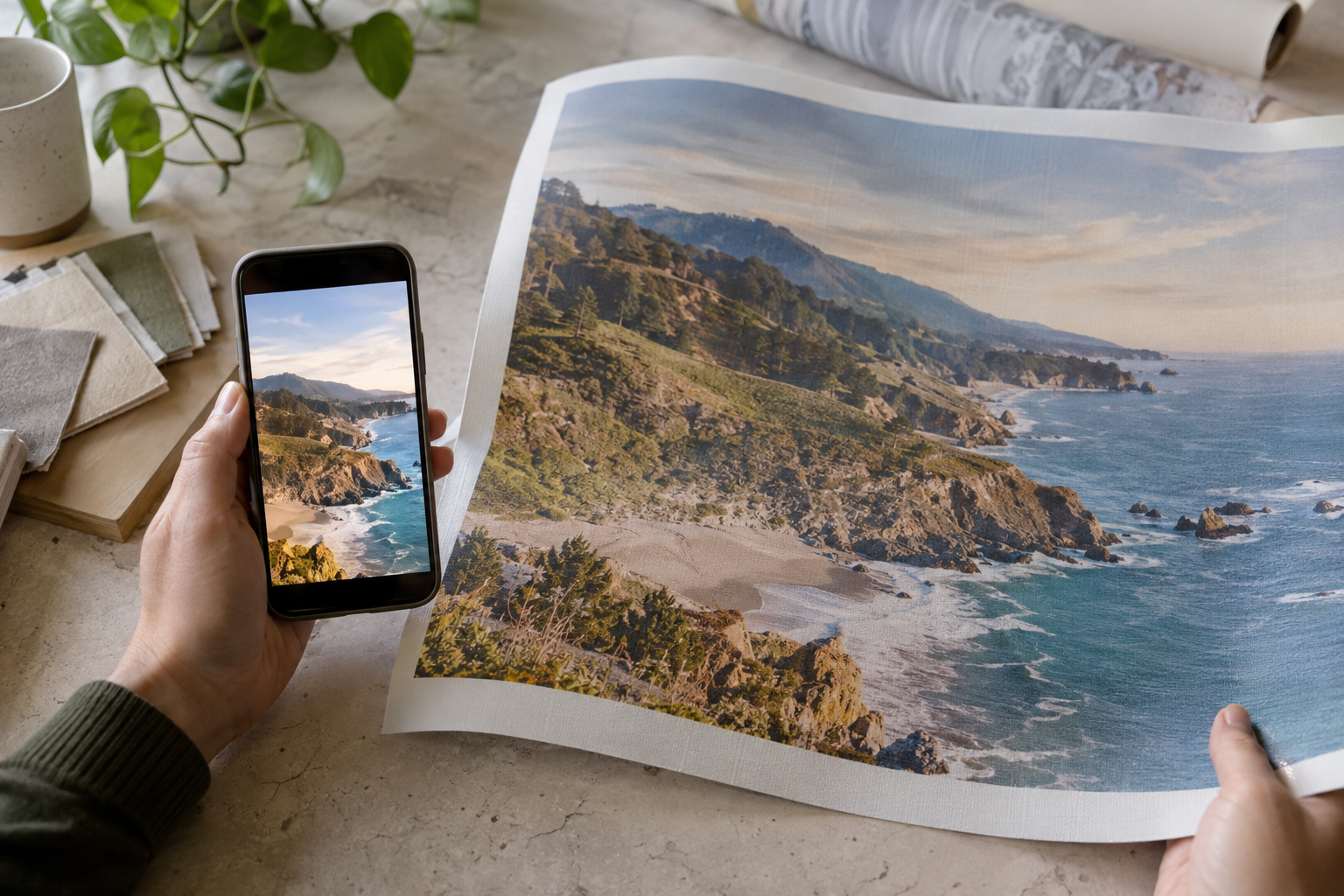
Colour needs its own check. A luminous phone display emits light, while wallpaper reflects room light. A pale sky can look different under warm lamps and a dark forest can lose detail on a matte finish. If the selected material has a physical sample, view it in the intended room rather than trying to match a backlit screen by eye. The editorial comparison below shows a phone landscape beside a loose test print. It illustrates a possible review process, not a guaranteed match or a real customer order.
When the phone photo is unsuitable
A blurry, heavily compressed or narrowly cropped image may not be a good candidate for a full wall. Ask whether the original still exists in a photo-library backup. If not, consider a smaller printed area, a different frame from the same outing or a design that uses the photograph within a wider graphic composition. Do not rely on a quick upscaling pass to restore lost detail. Enhancement can change how the image looks, but it cannot prove that the captured subject was sharper than the original file shows.
When two versions exist, compare the same detail side by side: the original, the edited export and any enlarged copy. If a branch, eye or sign becomes waxy or develops a bright halo in the larger file, the extra pixels are not evidence of better capture. Choose a smaller feature wall or a different photo if a proof shows the defect clearly. Softness can be an intentional visual quality, but it should be a conscious choice after seeing the printed scale.
There is also a content question: a phone photo of someone else's illustration, artwork or photograph may require permission even though you took the phone picture. If people are prominent, check whether their likeness can be used as you intend, especially for commercial or public spaces. A supplier can review file quality and cropping; it cannot infer that you hold every relevant right from the image file alone. Sort out permissions before sending the artwork to print.
A sensible approval sequence
For the coastal example, compare two original exposures on the measured wall crop: one with the boat close to the edge and one taken a step farther back. Keep the boat inside the visible finished area, not merely inside the extra material that will be trimmed away. Open both retained crops at full size to check water, horizon and any panorama join. If neither has enough clean detail at the intended scale, ask for a representative print proof or reduce the printed area. Resizing the phone export to a larger pixel number cannot replace a better-framed original.